Set up your brand once, and every new video starts looking like you. You start your Brand Kit when you set up your workspace. Ask the Agent: “Make a title card in our brand colors.” · “Restyle this callout to match our brand.” The Agent can’t switch a project’s brand, so you’ll do that yourself.

Do it yourself

Open your Brand Kit

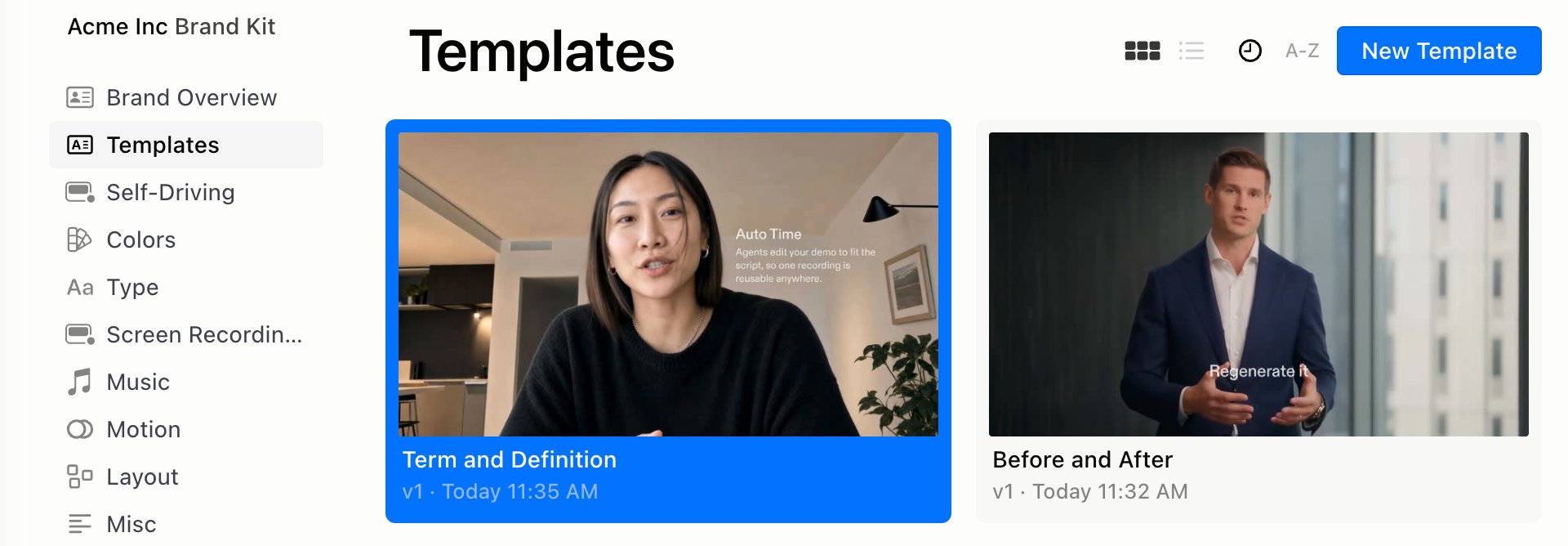
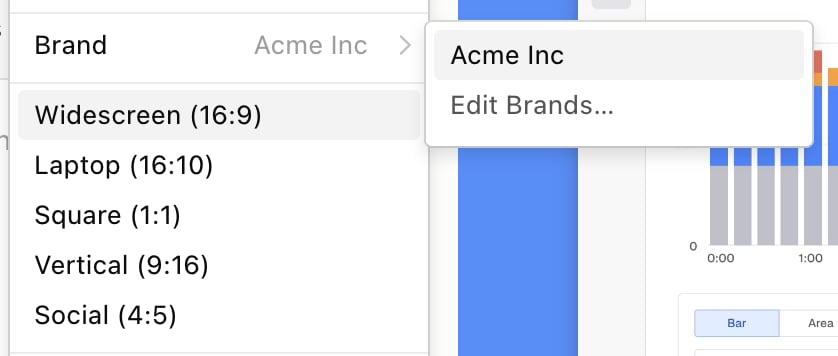
Click Brand Kit in the left sidebar. If you have several brands, pick one from the list. From inside a project, open the ⋯ menu next to the panel tabs and choose Brand → Edit Brands….

What’s inside

A Brand Kit with its sections listed on the left and Templates open, showing saved overlays and the New Template button
Click Save Changes when you’re done, or Cancel to throw edits away. To rename, copy or add a brand, open Brand Overview, click ⋯ and choose Rename Brand, Duplicate Brand or New Brand.

Switch a project’s brand

  1. Open the ⋯ menu next to the panel tabs.
  2. Choose Brand, then pick a brand.
    Brand in the ⋯ menu next to the panel tabs, open to the brand Acme Inc and Edit Brands…
Switching doesn’t restyle anything already in your project. It also starts a fresh Agent chat, so the Agent works with the new brand from then on. Related: Library and projects · Overlays and templates · Colors and effects