An overlay is anything you layer on top of your video: a title card, a callout, a logo or an arrow. Each one sits on the overlay track of the timeline. Ask the Agent: “Add a title card that says Meet Dashboards.” · “Make the callout at 0:12 shorter and move it to the top left.” · “Make an overlay that looks like this.” (Click + to attach the image first.) The Agent uses your brand’s fonts and colors, and can start from your brand’s templates.

Do it yourself

  1. Move the playhead to where the overlay should start.
  2. Click Add Overlay in the insert bar under the canvas. Hover a template to preview it and click to add it, or click New Blank Overlay to start empty. You’ll only see templates that fit this video’s size.
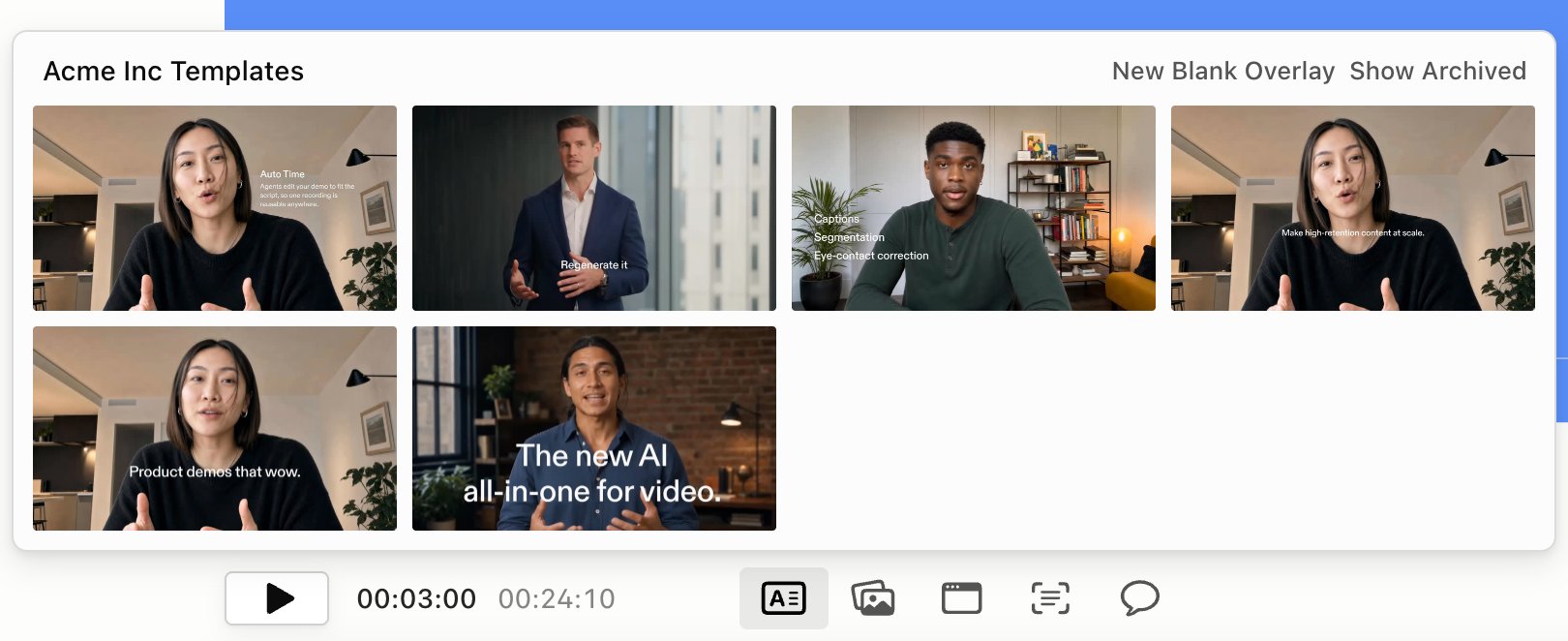
    The Add Overlay picker with the brand's templates, New Blank Overlay and Show Archived
  3. With the overlay selected, click Insert (the + in the top bar) and pick what to add.
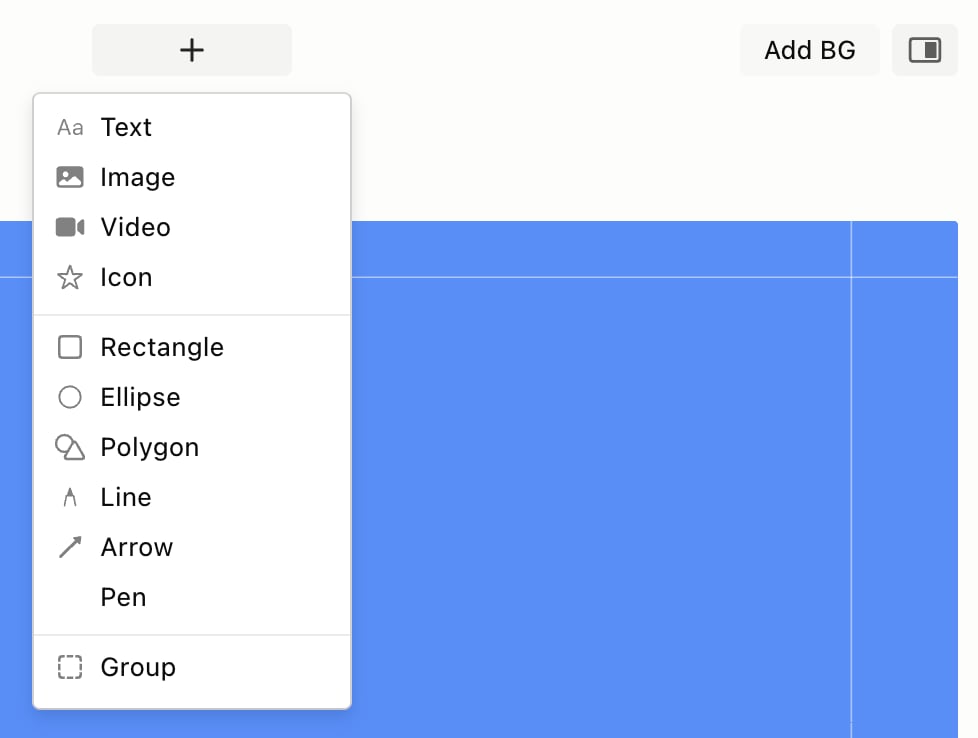
    The Insert menu in the top bar, with Text, Image, Video, Icon, shapes, lines, Pen and Group
You can only select and edit things on the canvas while the video is paused. For quick text, press T (see Text). To fine-tune anything, click Show Detail Panel at the right of the top bar.

Templates

Edit Template opens the template editor, and so does New Template in your Brand Kit. Add Text, Media and shapes from its toolbar, or ask its Agent tab for changes. When you’re done, click Publish Template (or Publish Updates) so it shows up in Add Overlay. Related: Text · Images and video · Shapes, lines and icons · Brand Kit