

Do it yourself
Invite teammates
- Click Invite Members in the left sidebar.
-
In Invite Team Members, type their email addresses, separated by commas.
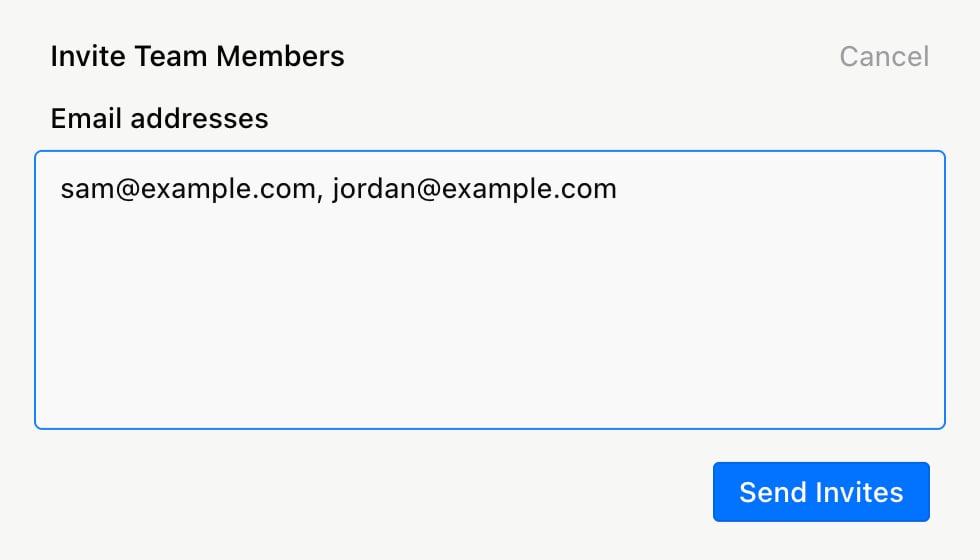
- Click Send Invites.
Manage members
Click Settings in the left sidebar. Team Members lists everyone in your workspace. Click ⋯ next to someone and choose Suspend user to remove their access right away. Choose Activate user to bring them back.Workspace name and icon
In Settings, under Workspace settings:Switch workspaces
Click your workspace name at the top of the left sidebar, then pick another workspace. Sign out is at the bottom of the same menu.Review with comments
- Press C, or click New Agent Comment (the speech bubble in the insert bar under the canvas), to leave a comment at the playhead. It starts with @Agent, so type what you want changed.
- To ask a teammate instead, delete @Agent, type @ to pick them, then type your note.
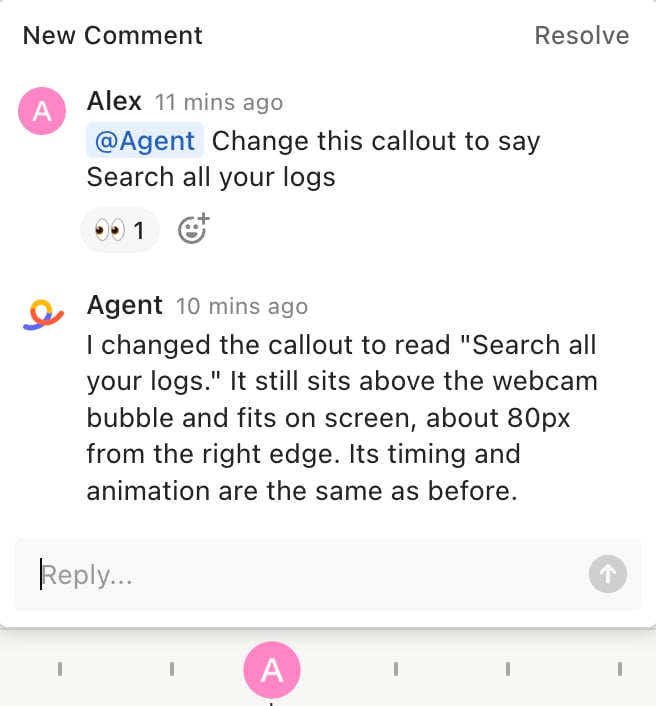
Projects with new comments show an unread count in the Library.
Related: Library and projects · Plan and credits · Settings and integrations · Working with the Agent