Motion draws the eye, so viewers notice each point as you make it. Ask the Agent: “Animate the three bullet points in one at a time.” · “Time the callout to appear when I say ‘one click’.” Animations come from the Agent, templates, and Figma or Google Slides imports. The Agent can also time them to a word in your narration.

Do it yourself

Change the timing

Re-timing uses credits, like an Agent edit.

Edit an animated element

  • Properties that animate are grayed out in the top bar. Ask the Agent to change them.
  • Drag an animated element on the canvas to move its whole path, start to finish.

Move along a path

  1. Draw a path with the Pen or Line tool.
  2. Shift-click the element you want to move, such as a shape, image or group, so it and the path are both selected.
  3. Right-click and choose Use as Motion Path.
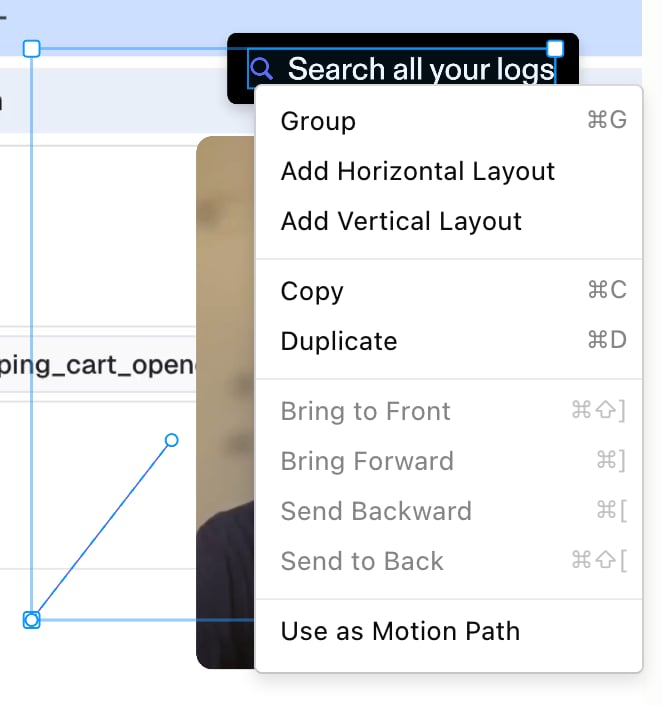
A line and a callout's search pill selected together, with Use as Motion Path at the bottom of the right-click menu

Smooth it out

Fast motion can look choppy. Click Show Detail Panel, hover the top of the panel, click See All, then scroll down and add Motion Blur to blur the element as it moves. Related: Layout and alignment · Import from Figma, Google Slides and SVG · Working with the Agent