

Give Yarn permission to record
The first time, your Mac needs to let Yarn record.- In Recording Setup, click Open Settings next to Accessibility, and turn Yarn on. Then do the same for Screen Recording.
- If you use your camera, do the same for Camera and Microphone in Device Setup.
- If your Mac asks you to quit and reopen Yarn, do it, then start recording again.
Do it yourself
-
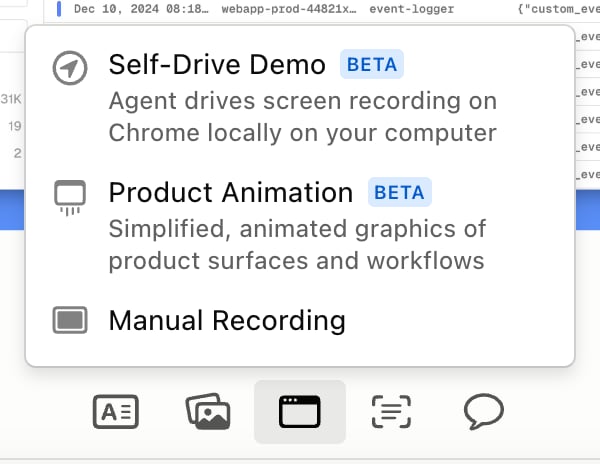
Click Add Demo → Manual Recording, or press D and pick it from the list. The Yarn window hides and the recorder opens.
- Pick a mode, then click the record button, or press ⌘⇧Enter.
- Walk through your product, then click the red stop button, or press ⇧Escape.
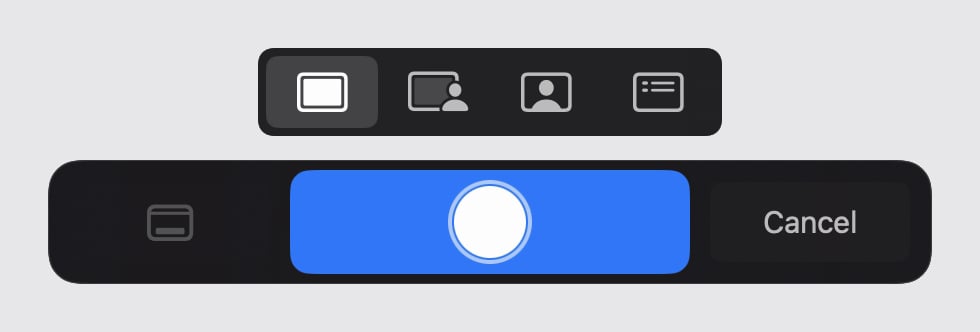
Changed your mind before you start? Click Cancel to close the recorder. Made a mistake while recording? Click ↻ (Restart recording), just right of the stop button, to throw the take away and start again.