

You set this up in Claude, so the Agent can’t do it for you.
Connect Claude to Yarn
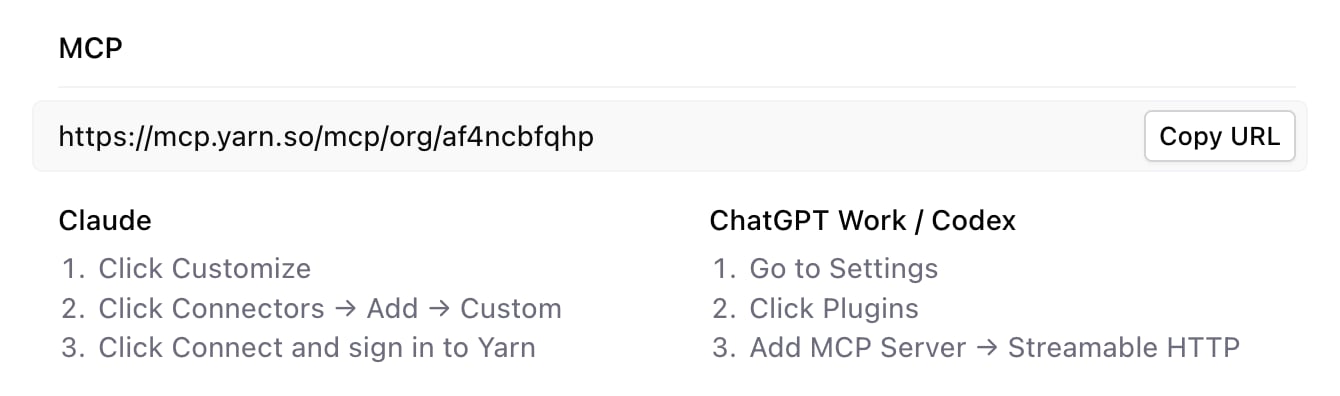
- In Yarn, click Settings in the left sidebar. Under MCP, click Copy URL.
- In Claude, click Customize, then Connectors → Add → Custom. Name it Yarn, paste the URL and click Add. Then click Connect.
- In the browser page that opens, click Continue with Google. If your company uses SSO, enter your work email under Company SSO and click Continue with SSO instead. If you’re in more than one workspace, pick one and click Approve.
What you can ask
- “What’s on screen at 0:30 in Q4 Launch?”
- “Make a 60-second launch video for our new reports page.”
- “Export Q4 Launch and show it to me.”
- “Import this Figma frame as a template.”
Find what Claude made
New videos land in Your Drafts. To open one in Yarn, click Edit on Timeline under its player in Claude. When Claude changes a video, you may see an @Agent comment on its timeline with the Agent’s reply. Changes can take a few minutes. While Claude works, the project’s card in your Library shows a spinner.Files, workspaces and disconnecting
- Claude can upload files from your Mac while Yarn is open. For Figma frames, connect Figma in Yarn’s Settings first.
- Claude sees what you see in Yarn: your team’s projects and your own drafts, but not a teammate’s private draft.
- Claude uses the workspace you picked when you signed in. To add another, switch to it in Yarn, copy its URL and add a second connector.
- To disconnect, remove Yarn from Connectors in Claude.
Can’t connect?
Related: Working with the Agent · Settings and integrations