The right framing makes your product look polished, whether that’s a tidy browser window or a tight crop.
The Agent can’t change a screen recording’s display or background yet, but the controls are in the top bar.

Pick a display

Select the screen recording, then pick a display from the menu at the left of the top bar.
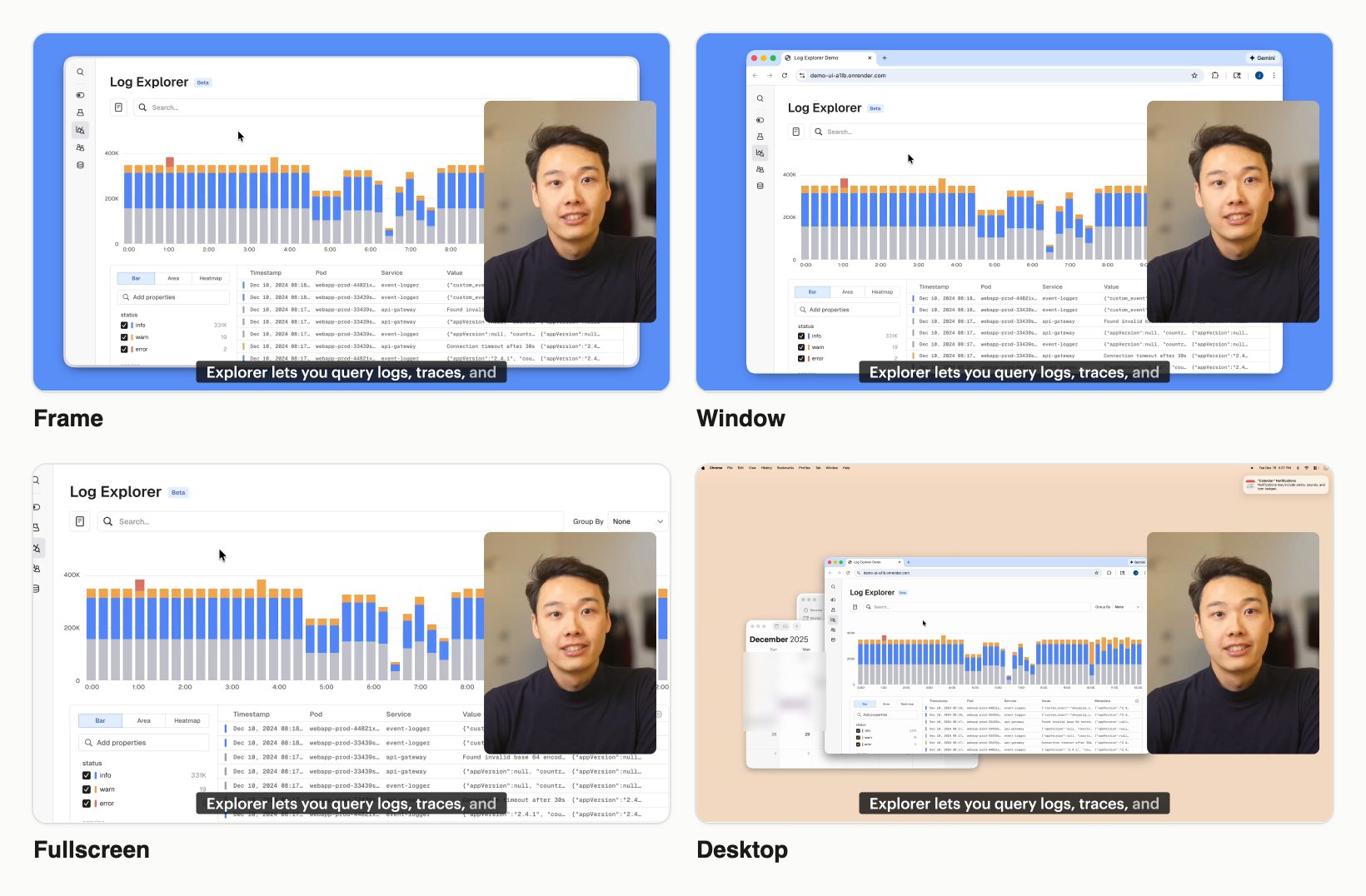
The same recording in Frame, Window, Fullscreen and Desktop
You’ll only see the options that fit your recording.

Background, bookmark bar and sound

Click ⋯ at the right of the top bar.
If you’ve re-timed part of the recording with sync points, its sound is muted automatically and Unmute is greyed out.

Entrance and exit

Click the animation button (Animations) in the same bar. Pick how the recording comes in on the Enter tab, like Fade In or Scale Up, and how it leaves on the Exit tab.
The speaker button next to it (Sound Effects) plays a sound as it comes in or goes out.
To set padding, shadow and animation for every screen recording at once, use Screen Recording Settings.
Related: Zooms · Sync points, skips and speed