The timeline is where your video takes shape. Ask the Agent: “Trim the first two seconds off this clip.” · “Move the title card to the start of scene 2.” · “Merge the first two scenes.”

Do it yourself

Tracks

From top to bottom: zooms, overlays, screen recordings and video clips, then narration (voiceover lines and camera clips). Click a voiceover line on the timeline to open it in the Script tab.

Clips

Right-click a clip for more options, like Add Skip… on a screen recording. See Sync points, skips and speed.

Scenes
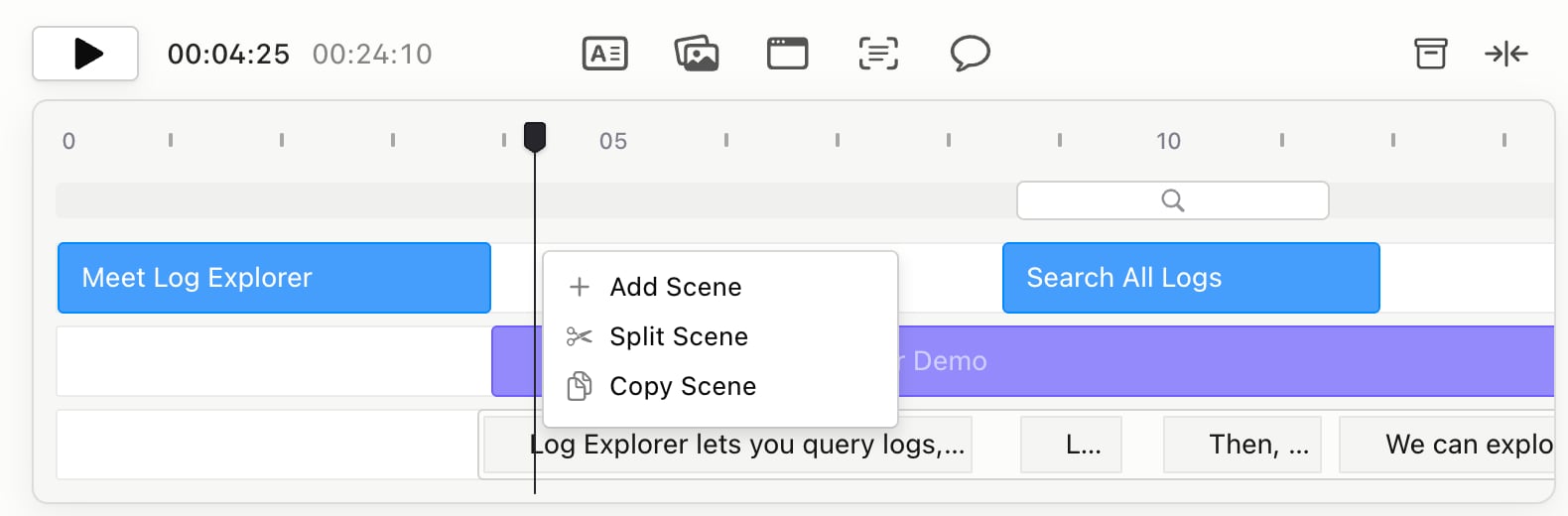
The menu you get when you right-click the empty timeline, with Add Scene, Split Scene and Copy Scene

Jump to a time and zoom

Double-click the time under the canvas, type a new time and press Enter. It reads minutes:seconds:hundredths, so 1:30:00 is 1 minute 30 seconds.
To zoom the timeline, click Timeline Zoom and use the slider, or press F to fit the whole video. Related: Sync points, skips and speed · Edit with the Script · Keyboard shortcuts