Do it yourself
Add music
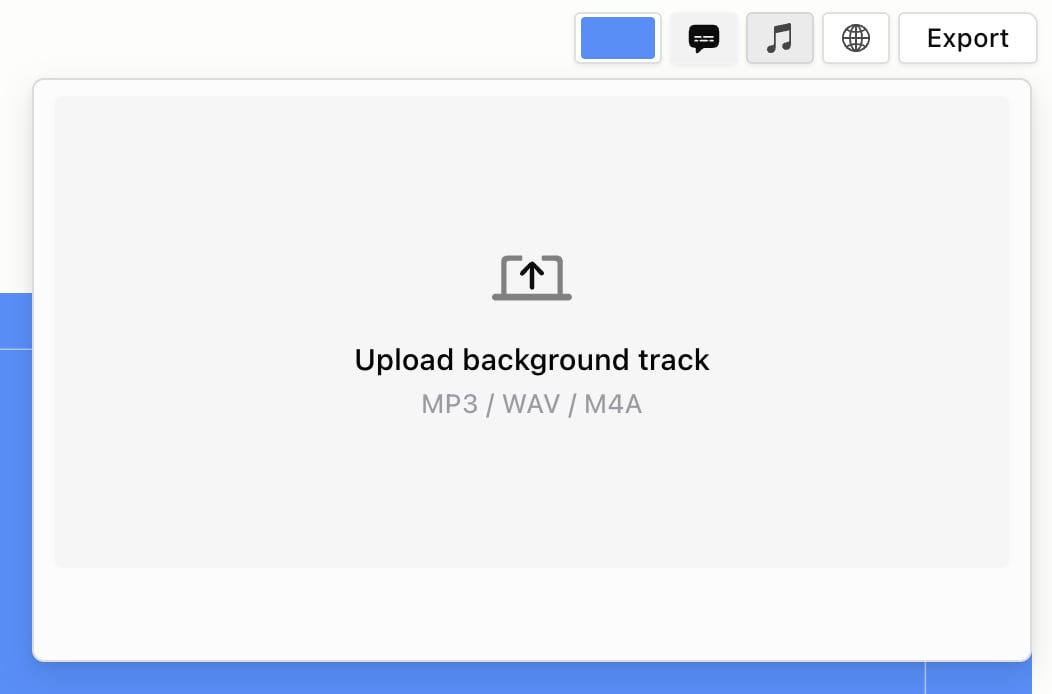
- Click the music button (Add Music) at the top right of the editor.
-
Click Upload background track to add an MP3, WAV or M4A. Tracks you’ve added show up in this menu, so next time you can just pick one (hover its play icon to preview it).
- To fit the track to your video, click the music button again, then click the remix button on your track (Remix Music to Fit).
Music settings
Open the ⋯ menu next to the panel tabs and choose Music Settings….Sound effects
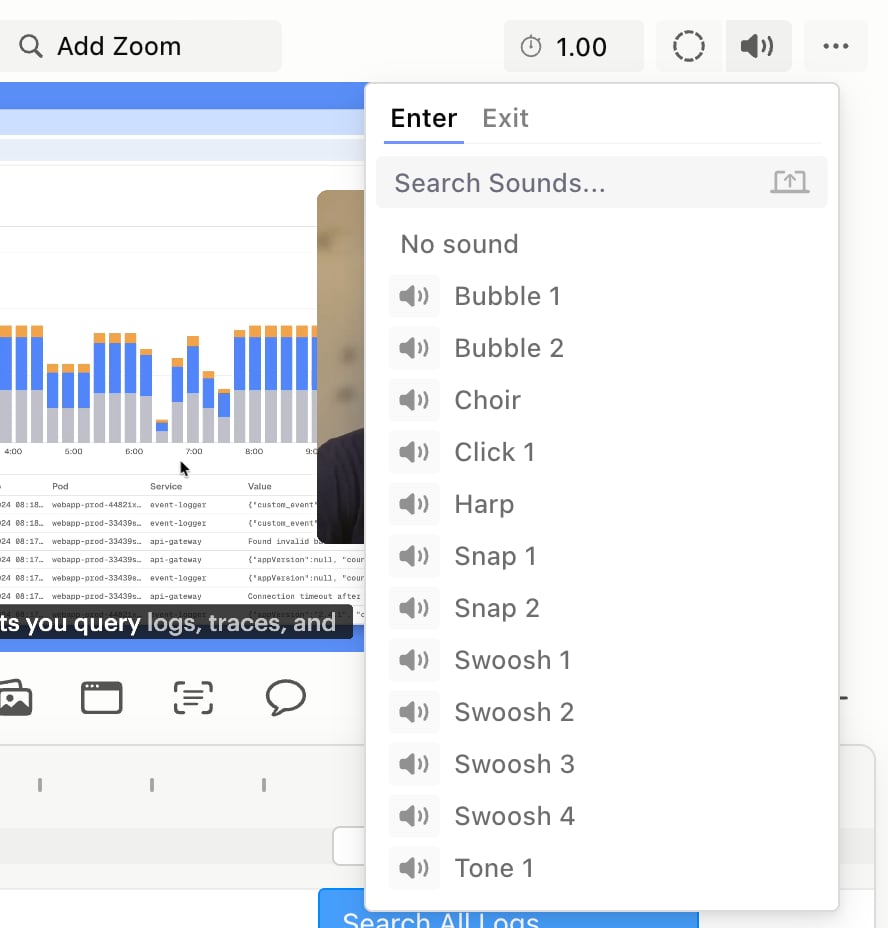
For clicks and typing in every screen recording, open the ⋯ menu next to the panel tabs, choose Screen Recording Settings…, and turn on Cursor Clicks or Keyboard Presses. For one screen recording, select it and click the speaker button (Sound Effects) in the top bar. Pick a sound for Enter or Exit, search, upload your own, or choose No sound.